 adeticket
THE ADETICKET FIELD GUIDE
How to play and host Bible Blitz
Turn scrambled Bible names, books and places into a game everyone can follow. This guide takes you from choosing a mode to running the final round.
1. Choose how people will play
- Party mode
- Use one device. Players call out answers and the host awards points. Choose this when everyone is in the same room and you do not need phone buzzers.
- Host + big screen
- Keep controls on the host device and open the separate audience display on a TV or second computer. This mode accepts audience displays; choose Play online if players need to join on phones. This is useful when the host needs to preview answers privately.
- Play online
- Share the room code or QR link with players on their own devices. Configure the answering method during setup; phone buzzers and typed answers support a more structured round. Have everyone join and choose a team before the host starts. New players cannot join a game already in progress; they can watch the display until the next game.
- Solo challenge
- Answer on your own device, use a hint when needed, and try to improve your browser’s personal best. Solo has its own scoring behavior and does not use the group host tools.
2. Set the rules before the first word
Select categories and difficulty, then set rounds, words per round, timer and points. For a first session with mixed experience, try Easy difficulty and a short practice round before the scored game. This is a suggested format, not a required setting.
- Show the scrambled word. For example, STHERE can be rearranged to ESTHER.
- Let players answer using the method you chose. In a spoken-answer game, agree whether teams must wait to be called on.
- Award the correct team, or reveal the answer if nobody solves it. Advance when everyone is ready.
- Review the scores between rounds. Decide before starting whether to enable wrong-answer penalties, steals and a tiebreaker.
A scoring example
In a group game set to 100 points per correct answer, three correct answers earn 300 points. If you choose a 25-point wrong-answer penalty and that team receives one penalty, its total becomes 275. The default wrong-answer penalty is zero. Use the settings you actually selected when explaining the rules.
Solo can award a streak bonus, and a hint reduces the award. Do not use this simple group-game example to predict a Solo score.
If the host awards the wrong team, use Undo promptly and check the scoreboard before continuing. A revealed answer is no longer a fresh puzzle, so agree how to handle accidental reveals rather than pretending nobody saw it.
3. Prepare privately in Host Control Center
After creating a Party, Host + big screen or Online game, open Host Control Center above the board. The plan shows answers, so keep this screen facing the host.
- Reorder upcoming words or whole unstarted rounds to arrange the flow of the game.
- Replace a planned word with an unused alternative from the selected categories and difficulty.
- Pause before replacing the current word. Replacement is blocked after a score or penalty on that word, and during tiebreaks.
- Edit team names and colors without changing their scores or player assignments.
- Start, pause, reveal, award points and advance while the panel is open.
Played words and started rounds are protected from reordering. Team editing changes existing teams; it does not add or remove teams after setup.
4. Give the audience its own screen
In Host + big screen or Online mode, use Open big screen for the audience view on another device. In Party mode, use Open a presentation window on this device before starting; move that window to a connected display. Do not mirror the host’s answer plan onto a shared screen. In Host + big screen mode, Google Cast controls are available in supported Chrome browsers on a computer or Android device. The sender and compatible TV should be on the same Wi-Fi.
On iPhone or iPad, use Control Center → Screen Mirroring with an AirPlay-compatible display. If mirroring would expose the host controls, use a separate device with only the audience view open. Sounds play on the host device.
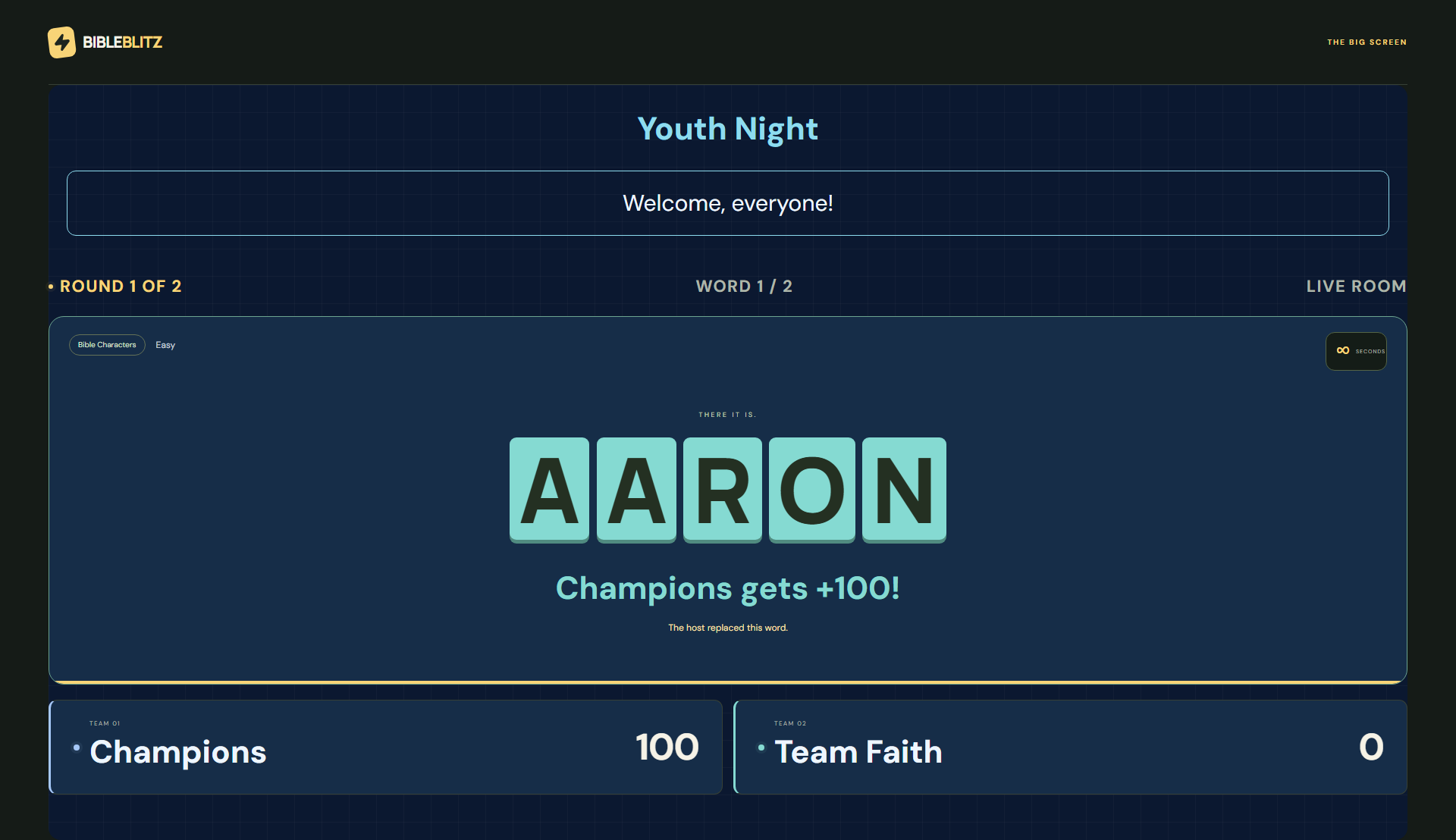
Open TV Presentation Studio to choose a theme, background, text size, event title, announcement, winner message and confetti setting. Preview the draft, then select Apply to TV. Draft edits stay private until applied. Reset draft also needs to be applied before it changes the audience display.
Check readability from the back of the room. Short announcements leave more space for the puzzle and scores. Design settings carry into replay but are not saved as reusable event presets.
When something does not look right
- A player cannot join
- Check the room code and that the host’s game is still open. Online rooms last up to six hours, expire after an hour without room activity, and may end when the server restarts. Create a new game if the old room has expired.
- The TV has the old design
- Check whether Apply to TV was selected. A changed preview alone does not publish. Confirm the display is connected to the intended room.
- Cast is unavailable
- Try supported Chrome on a computer or Android, check the network and TV compatibility, or open the audience display directly on a second device. An HDMI connection or screen mirroring is another option.
- A refresh ended the local game
- Local games reset on reload. Keep the game tab open during the event. Online rooms also are not durable saved games; do not rely on them as an archive.
For a smoother event, follow the game-night setup checklist. To report a problem, email adeticket@gmail.com with the mode, browser and steps that caused it. Do not include private account information.